
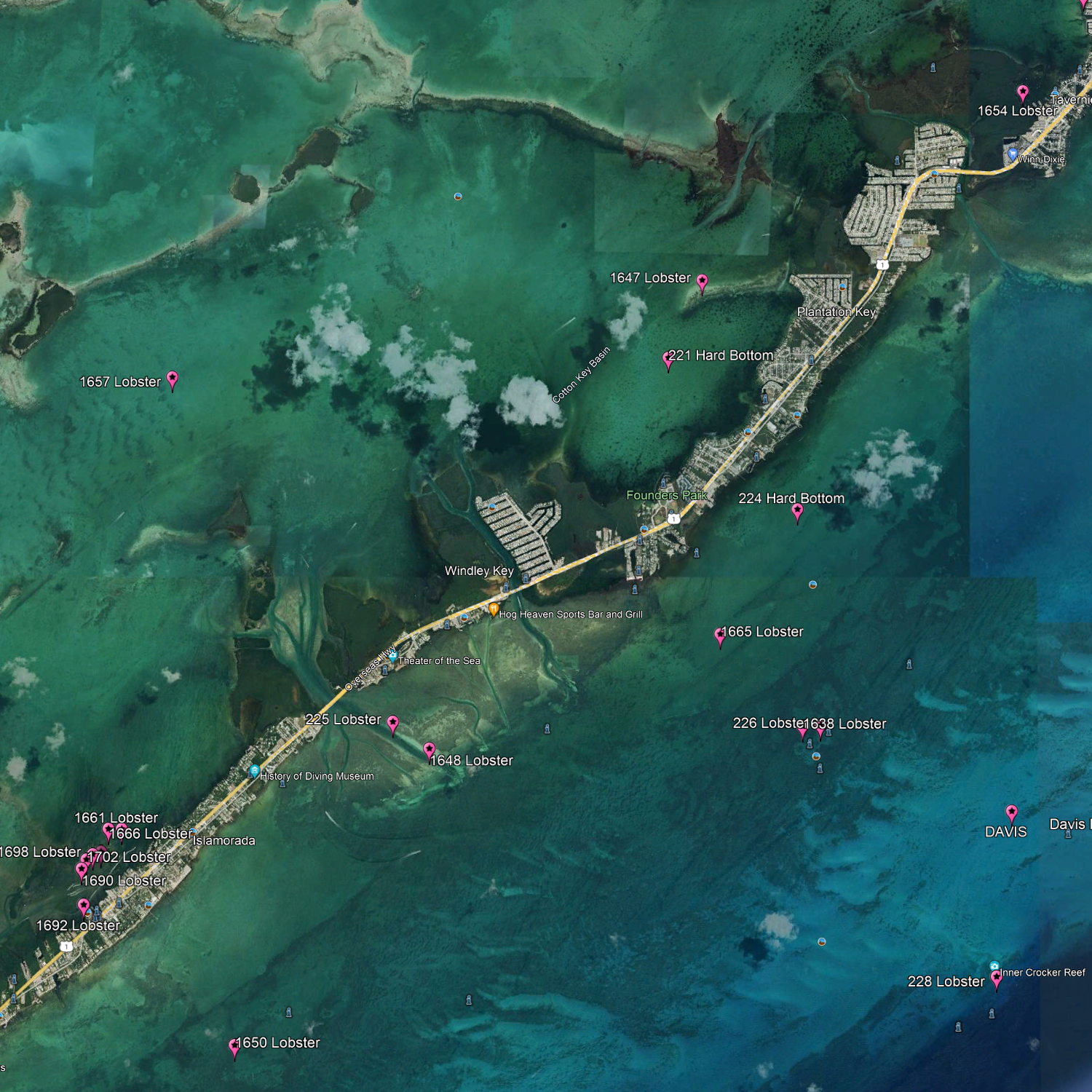
How to Import Spots from an SD Card - Garmin/Simrad MFD's
Technology is Great... When it Works.
How to Import Your New Honey Holes via SD Card
We get it. You bought these coordinates to catch fish, not to become a computer programmer. If the thought of "importing data" makes you want to throw your chartplotter overboard, take a deep breath. Scroll down for Video help!
Here is the most important thing to remember: It isn't automatic. No GPS manufacturer on the planet allows you to just pop in a card and have the spots magically appear. You have to "invite" them onto your machine.
Think of it like a cooler—just because you put the beer in the truck doesn't mean it’s in the ice chest yet. You’ve got to move it.
The Golden Rule: The "Import" Command
Whether you’re running a $5,000 suite of electronics or a trusty old unit, the process is almost always the same. Once you plug in your Fish On SD card, your machine will usually "see" it, but it’s waiting for your permission to bring the data home.
For Garmin Users
- Insert the card.
- Navigate to Nav Info or User Data.
- Select Manage Data.
- Choose Data Transfer and select Import from Card.
The Garmin "Secret Sauce": .GPX vs .ADM
If you’re a Garmin owner, your machine speaks two languages. .ADM is Garmin's native tongue, but .GPX is the universal language of fishing spots. Our files come in .GPX because it's the gold standard for accuracy and compatibility.
Before you try to import, check this setting: On most modern Garmin units (like the EchoMap or GPSMAP series), you don't actually need to change a "setting" to make it work, but you do need to tell the machine to look for the right file type.
How to check if your Garmin is ready:
- Insert your Fish On SD card.
- Go to Nav Info > Manage Data > Data Transfer.
- Select File Type.
- Ensure GPX is selected (not ADM).
- Once GPX is selected, your Fish On files will appear in the list, ready to be imported.
Why GPX is the "Gold Hook" of Files
You might wonder why we don't just give you an .ADM file. It's simple: Flexibility. * Universal Fit: GPX works on Simrad, Lowrance, Raymarine, and Garmin. If you upgrade your boat or switch brands, your Fish On spots move with you.
- No Translation Needed: Most modern Garmins (post-2012) handle GPX perfectly as long as you select it in the menu.
- Backups: GPX files are easily read by apps like Navionics or Google Earth, so you can scout your spots on your couch before you ever hit the salt.
For Simrad (and Lowrance/B&G) Users
- Insert the card.
- Go to your Pages or Home menu.
- Find the Files or Storage tool. This is usually under the "Hamburger" or three horizontal lines on a Simrad unit.
- Select the memory card (usually labeled 'SD Card' or 'Memory Card').
- Select the .GPX file and hit Import.
"I don't have a Garmin or Simrad!"
Don't worry. Whether you use Raymarine, Furuno, or Humminbird, the terminology is 99% the same. You are looking for a menu labeled "Files," "Storage," or "User Data." If you can find that, you’ll find the "Import" button.
Pro-Tip: If you’re feeling stuck, watch our Simrad Tutorial Video below. Even if you don't own a Simrad, the steps and the logic are nearly identical across all brands. It’s the best five minutes you’ll spend before heading to the ramp.
The "All-Brands" Cheat Sheet
Think of this as your universal translator. No matter what brand is sitting on your dash, you are looking for the same three steps: Insert → Manage → Import.
| Manufacturer | Menu Heading | The "Secret" Button | File Type to Look For |
| Garmin | Nav Info or User Data | Data Transfer | GPX (Not .ADM) |
| Simrad | Pages (Home) | Files or Storage | .GPX |
| Lowrance | Pages (Home) | Files or Storage | .GPX |
| Raymarine | My Data | Import/Export | .GPX |
| Humminbird | Files or Nav Data | Import Nav Data | .GPX |
| B&G | Pages (Home) | Files | .GPX |
Troubleshooting for the "Technically Challenged"
- The "Nothing Happened" Syndrome: If you plug the card in and the screen stays the same, don't panic. Some machines are shy. You just have to manually go into your "Files" menu to find the card.
- The "Card Not Found" Error: Make sure the card is pushed all the way in until it clicks. Salt air and grit can be a pain—make sure the slot is clean.
- Don't Delete Your Old Spots: Importing our files won't erase your existing spots. It just adds ours to your collection. (Though, after you see where our spots are, you might want to delete your old ones anyway!)
Still stuck? Don't let your blood pressure rise with the tide. Send us a message, and we'll help you get those coordinates locked in so you can get your Fish On!